
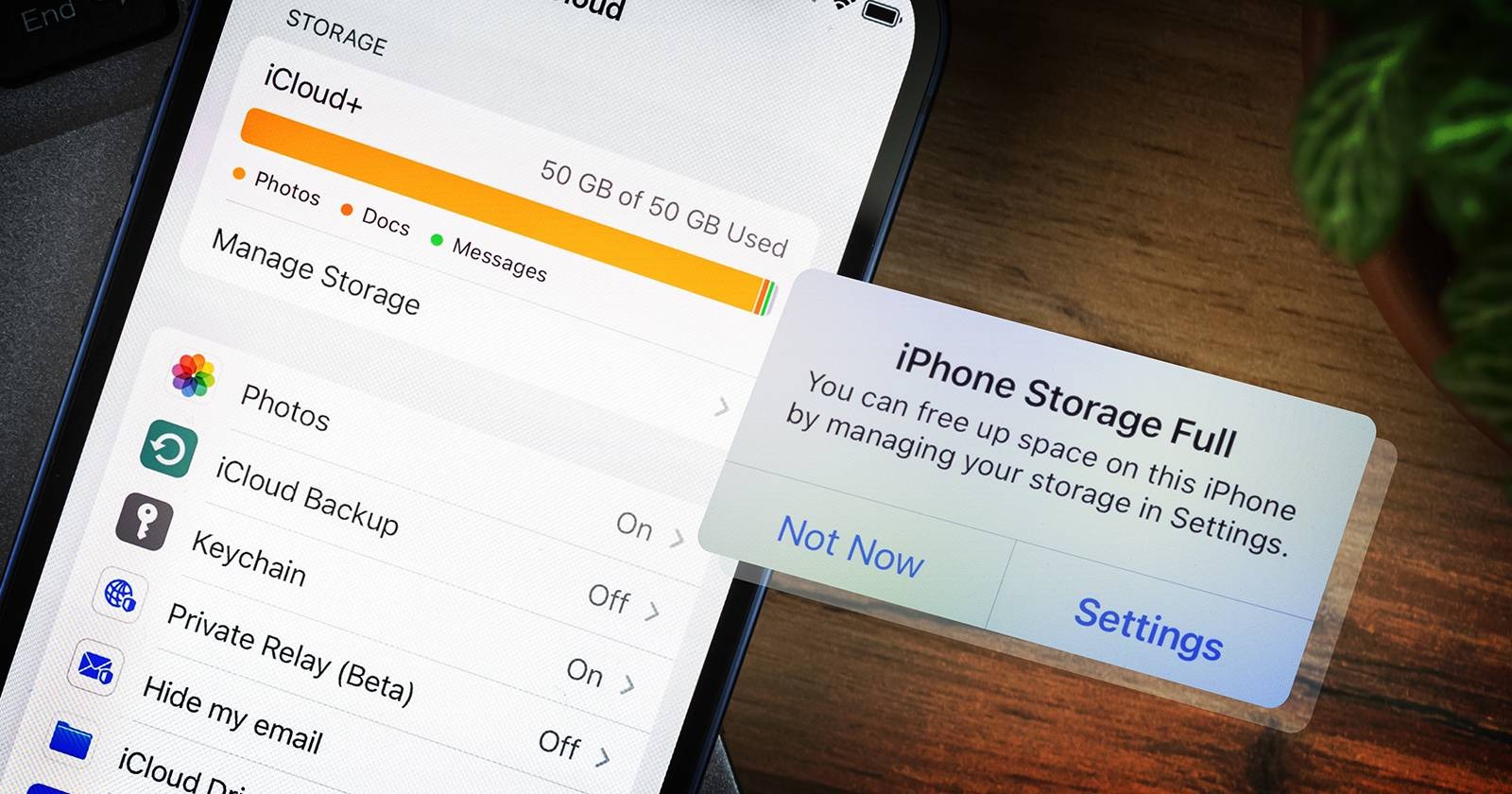
This simple trick can fix your iPhone storage problem in minutes
Your iPhone may be full, but the biggest storage hogs are often easy to remove once you know where to look.

That notification hits hard – “iPhone Storage Full” – especially when you’re about to snap a photo or grab an urgent file. Suddenly, everything grinds to a halt. Last night it worked fine; today, it refuses to cooperate. The device you rely on acts like it has its own agenda now.
Most folks act alike when space runs low. Some begin removing apps at random, clearing out songs, or thinking a fresh iPhone is now needed. Truth is, filled-up devices almost always come down to small messes piling up quietly over time.
Begin at the Storage Menu
Start by opening Settings, followed by General, then tap iPhone Storage. What fills your device shows clearly on this screen – apps, photos, messages, each claiming room. Suggestions pop up too: look at big message files, or remove apps used once in a while but keep their data. Space shifts happen right there.
One of the handiest spots on your phone stays untouched by most people. Not sure what’s eating up space? This view shows every chunk, clear as day.
Clean Up Photos First
Most space goes to photos without you noticing. Old screenshots pile up over time. Duplicate selfies add more weight. A few shaky clips here and there? They count too. Slowly, it becomes dozens of gigabytes gone.
Start by launching the Photos application. Clear out anything that isn’t useful anymore. Videos usually take up the most room, so tackle those early. Next come repeated snapshots – get rid of extras piling up unseen.
Old screen captures clutter things too; toss them without hesitation. Snapshots kept just in case? They likely haven’t been looked at since saved.
Start here – most skip it. Head into the Recently Deleted section inside Photos. What vanishes doesn’t leave right away; it lingers close to a month. That space? Still used. Empty this spot, suddenly more room appears.
Hidden Clutter in Messages
Start at iPhone Storage, then tap into Messages. A lot of folks aren’t ready for what they find here. Years-old conversations might be holding onto clips, recordings, moving images, jokes shared long ago, files tucked away without notice.
Most times, one busy chat fills up space before you realize it. Look through heavy files, then remove the largest items early. Usually, this clears multiple gigabytes while leaving core messages untouched.
Remove apps you don’t use often
Here’s a handy move: offload apps you aren’t using. Rather than erase them entirely, your iPhone can clear the app but leave behind files and progress. Saved info stays put even when the icon vanishes.
Later reinstallation brings back your data. Ideal for travel tools, shopping helpers, or games used once in a while. Information stays put even after closing them down.
Should you want the app back someday, keeping it around beats wiping it completely.
Clear Browser Data
Over time, Safari tends to hold onto plenty of browsing details. Using it regularly? Head into Settings, tap Safari, then wipe out history and site data – only if that feels right to you.
Even if it doesn’t open up much room, a small gain can make a difference when space is tight. Sometimes just a little breathing room helps most.
How This Applies Outside Theory
When storage seems off even after tidying up, try turning the device off and on. Recalculating free space can take a moment on an iPhone following big file removals.
Most folks notice their iPhone works faster once there is extra space open. A system update installs easier when storage isn’t packed tight. New pictures find a home without hassle if room exists on the device. Warnings about full memory fade when you clear out clutter. Performance climbs because apps need breathing room just like people do.
Start by opening the storage settings before buying more cloud space or getting a new device. Most people assume their phone is full, yet it’s usually old files piling up over time. Try removing unused apps and duplicated photos – this often frees room fast. Clearing out digital junk might just give an aging iPhone a second life.
Subscribe to my whatsapp channel
